Branches
Switching, creating, merging, rebasing, and resolving a conflict when one comes up.
Switch
-
Open the branches tab, click any branch in the list.
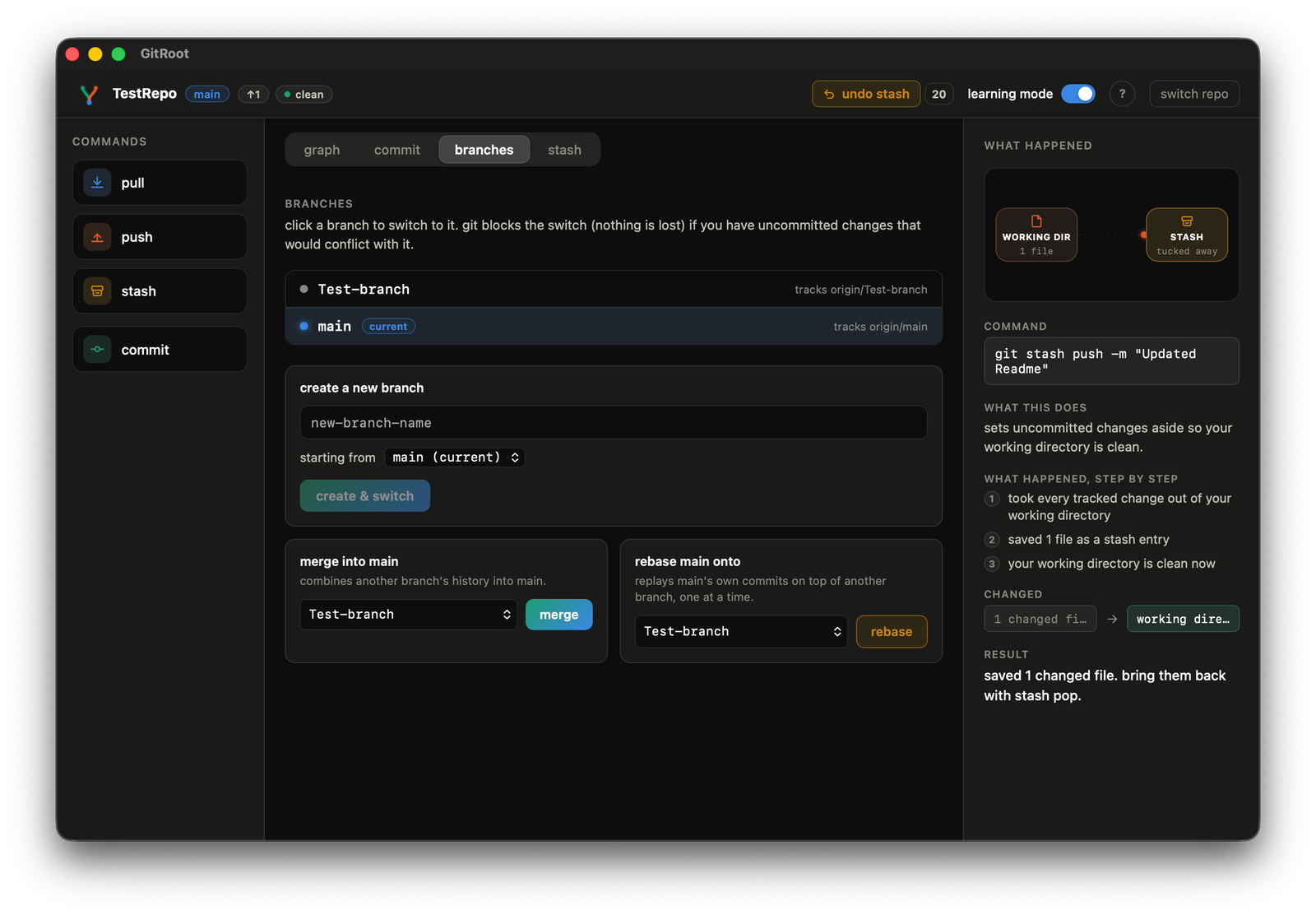
-
If uncommitted changes would conflict with the switch, git blocks it before touching anything. Nothing lost, you just can't switch until you deal with them.
Create
Type a name in the "create a new branch" field, pick a starting branch from the dropdown, click create & switch. The name is checked live as you type against git's real naming rules: type a space or a leading dash and an inline error appears immediately, before it ever reaches git.
Merge
In the branches tab, pick a branch in the merge picker, click merge. Full detail, including the outcome preview, on the merge page.
Rebase
Pick a branch in the rebase picker, click rebase. Full detail, including the already-pushed warning, on the rebase page.
When something conflicts
Same dialog every time, whether merge, rebase, or revert triggered it. GitRoot doesn't have a built-in merge or diff editor: it opens the conflicted file in your OS's own default editor instead.
-
The dialog lists every conflicted file, each with an open button that launches it in your default editor.
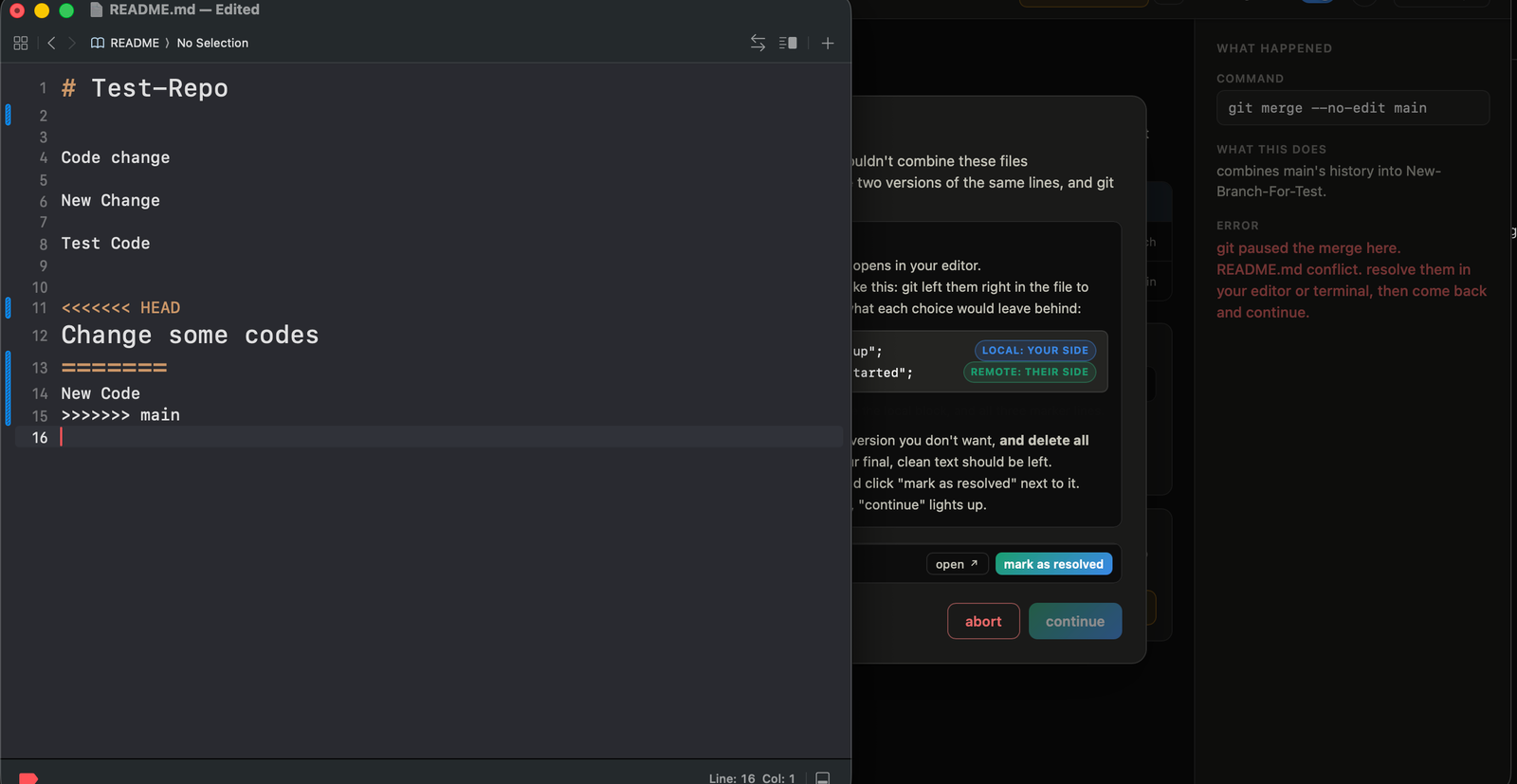
-
An animated example inside the dialog walks through the
<<<<<<</=======/>>>>>>>marker format on its own, useful to show since it's not a static screenshot. -
Fix the file yourself, save, come back, click mark as resolved next to it. If GitRoot still finds raw markers in the file, it warns before staging instead of letting a broken file through.
-
Continue lights up once every file is resolved. Abort is available the whole time and fully reverts to the pre-merge state.